


How to Fix Missing Textures in 3ds Max: Relink Bitmaps and Automation Guide
05 May 2026
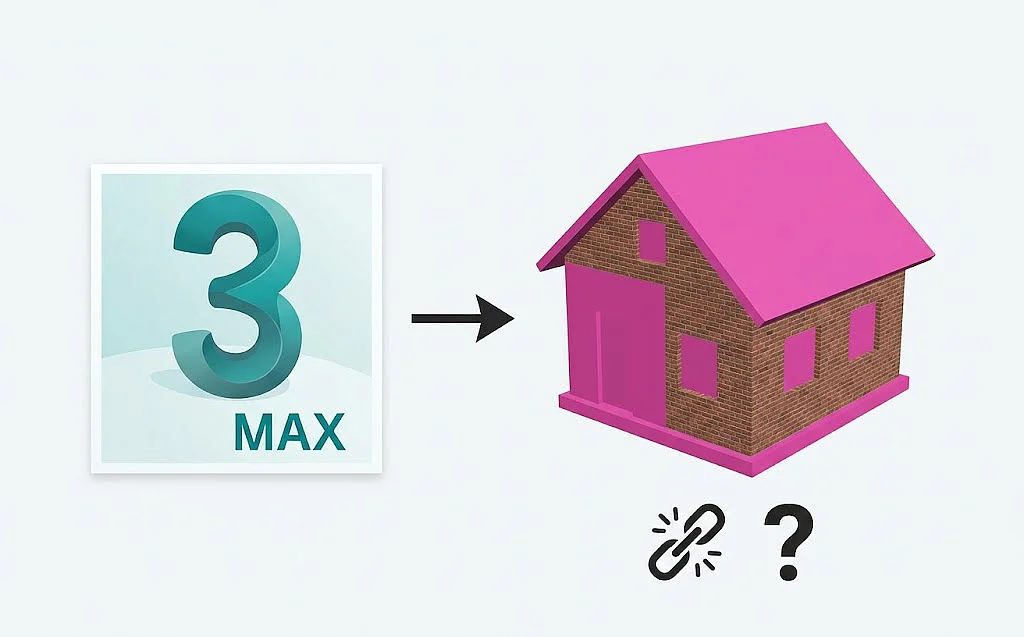
How to Fix Missing Textures in 3ds Max: Complete Guide
Opening a 3ds Max scene only to find it filled with "black" or "pink" objects is a common frustration for 3D artists. This usually happens when you move project folders, rename directories, or download assets from an external library. 3ds Max uses absolute or relative paths to find your textures; if the link is broken, the render will be incomplete.
Why Textures Go Missing
By default, 3ds Max looks for bitmaps in the specific folders where they were originally saved. If you receive a file from a colleague or a marketplace, your computer doesn't have the same folder structure, leading to the "Missing External Files" error. While you can manually add paths in the Configure Project Paths menu, it is often tedious for large scenes with hundreds of assets.
The Manual Way: Relink Bitmaps Script
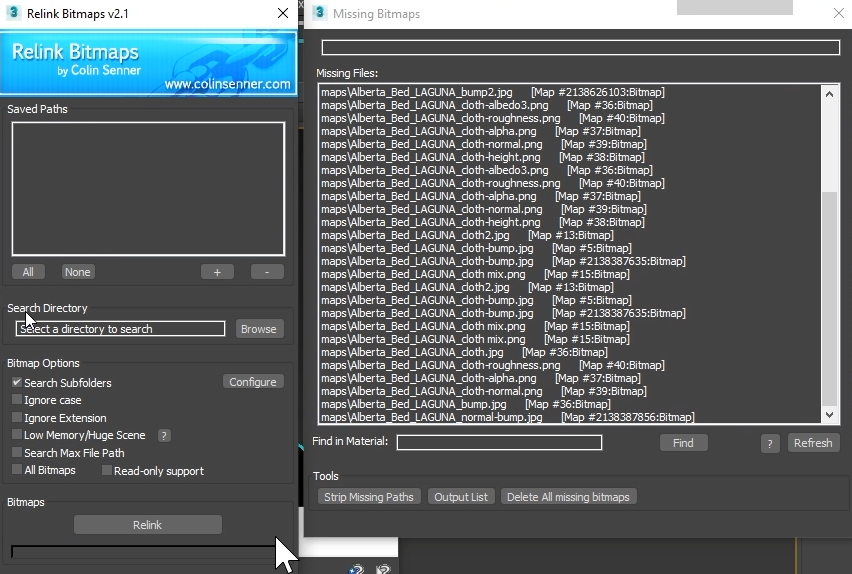
One of the most popular community tools for solving this is the Relink Bitmaps script. It is a simple but effective utility that scans your scene for all missing maps and allows you to "re-point" them to a new directory. You simply select the folders where your textures are stored, and the script automatically matches the file names and restores the links.
While this is a great free solution, it still requires manual input every time you bring a new model into your project. You have to stop your creative flow, run the script, select the path, and wait for the refresh.
Comparison: Manual vs. Automated Workflow
| Feature | Standard Import | Relink Scripts | QuickMerge |
|---|---|---|---|
| Texture Loading | Often Missing | Manual Search | Fully Automatic |
| Workflow Speed | Slow | Moderate | Instant |
| User Input | High | Medium | None Required |
The Pro Solution: Automatic Import with QuickMerge
If you want to eliminate the "missing texture" problem entirely, the most efficient workflow is using QuickMerge. Unlike standard importing methods, QuickMerge is designed to handle asset management automatically during the merge process.
When you import a model using QuickMerge, the plugin handles everything in the background:
- Auto-Pathing: It identifies where the textures are located and links them instantly.
- No Manual Setup: You don't need to open the Asset Tracking Toggle or run external relink scripts.
- Smart Merging: It cleans up the naming and ensures that materials are applied correctly the moment the model appears in your viewport.
Summary
Fixing missing textures doesn't have to be a bottleneck in your ArchViz production. While tools like Relink Bitmaps are great for fixing old scenes, using a modern tool like QuickMerge prevents the problem from occurring in the first place.
Expert Tip: To maintain a clean pipeline, always try to keep your .max files and their corresponding maps folder in the same directory structure. This helps both manual and automated tools find your assets faster.
3D Rush Blog — Tips, Tutorials and News for 3D Artists.
The 3D Rush blog is a resource for architects, interior designers, and 3D visualizers who work with 3ds Max, V-Ray, and Corona Renderer. We publish practical tutorials, workflow tips, and updates about our 3D model library to help you work faster and produce better renders.
What You Will Find on the Blog
Our articles cover topics that matter to professionals working in architectural visualization and interior design:
3ds Max Tips — shortcuts, modeling techniques, scene organization, and workflow improvements that save hours on complex projects.
V-Ray and Corona Tutorials — lighting setups, material creation, render settings, and optimization techniques for photorealistic results.
3D Model Guides — how to organize your asset library, use the QuickMerge plugin, manage textures and materials, and get the most out of downloaded models.
Interior Design Resources — reference articles on furniture styles, material combinations, and lighting approaches used in professional archviz projects.
Free 3D Model Updates — announcements of new free models added to the library, including furniture, lighting, decoration, plants, and materials.
QuickMerge Plugin News — updates, new features, and tutorials for the QuickMerge 3ds Max plugin.
Who the Blog Is For
The 3D Rush blog is written for practicing professionals and students working in architectural visualization, interior design, and 3D modeling. Whether you are just starting with 3ds Max or managing a production studio, our articles are focused on practical, immediately applicable knowledge.
We avoid generic advice and focus on real workflows used in professional archviz environments. All tutorials and tips are tested in actual project conditions.
Stay Updated
New articles are published regularly. Bookmark the blog or follow 3D Rush on social media to stay updated with the latest tutorials, model releases, and workflow tips.
Browse the latest articles below and start improving your 3D visualization workflow today.


Plants / Indoor / Plants set
PRO
FREE

Standard
3dsMax 2015 + fbx
140K polygons
29 MB