


QuickMerge Merge Faster
Download and merge multiple 3D models in 3ds Max instantly with all materials and textures ready.
✓ Free download ✓ 3ds Max 2019+ ✓ Instant installation
Less Routine. More Creation.
Lightning Fast
Instantly merge multiple render‑ready models in 3ds Max
Organized Model Library
Keep all models managed in 3ds Max, no more digging through archives
Save Hours
Spend less time searching and focus on creative work
Centralized Access
All downloads sync to your account on site and plugin
Production Ready
Battle-tested in professional architectural and archviz studios
Easy to Use
An effortless workflow that delivers professional results
Install in 3 Simple Steps
No setup hassle, just install and go
1
Download the QuickMerge.mzp file
2
Drag and drop the .mzp file into your 3ds Max viewport
3
Follow the installation steps. Restart 3ds Max and start working
Before you start
Minimum requirements
3ds Max 2019 and Windows 10
Default download path
"QuickMerge/api/downloads". Change this in Settings if you prefer another location
Textures relink automatically
for portability across machines. No manual path setup or extra helper scripts needed
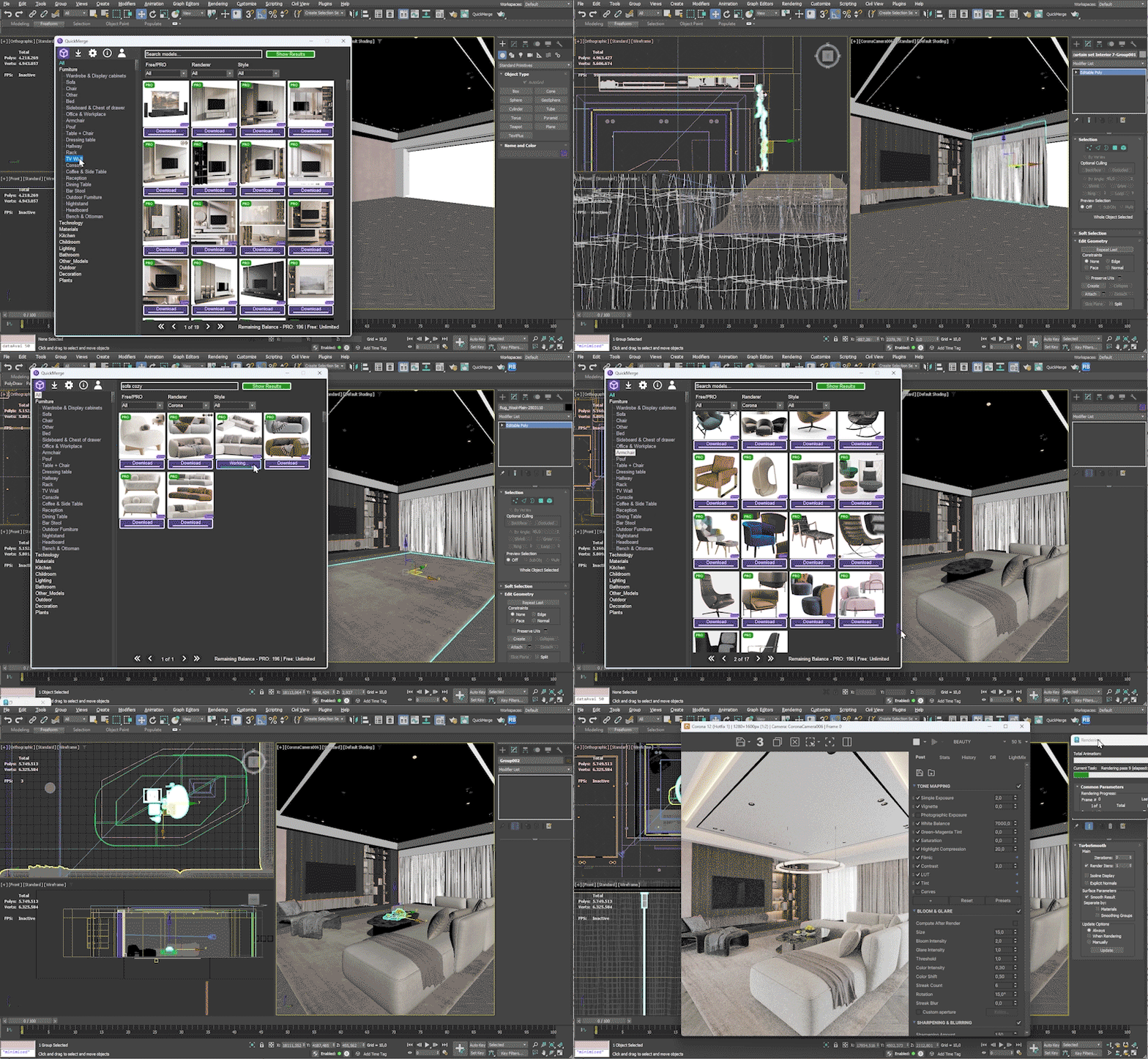
QuickMerge for 3ds Max in action
Live process videos: browse, merge, render
2:30
3:15
4:50
QuickMerge — Free 3ds Max Plugin for 3D Model Management | 3D Rush.
QuickMerge is a free plugin for 3ds Max that lets you browse, manage, and merge downloaded 3D models directly from inside your 3ds Max viewport. No manual file importing, no broken texture paths, no wasted time searching through folders.
What QuickMerge Does
QuickMerge connects your 3D Rush account to your 3ds Max environment. When you download a model from 3drush.com, it appears instantly in your QuickMerge library inside 3ds Max. You can browse your full download history, preview models, and merge them into any open scene with a single click.
All textures and materials are automatically relinked when you merge a model. QuickMerge handles the file path management so you never have to manually locate textures or fix broken material paths after importing.
Why 3D Artists Use QuickMerge
The traditional workflow for importing 3D models is slow. You download a zip file, extract it, locate the correct max file, open it or merge it manually, fix any texture paths, and then adjust the materials. This process takes several minutes for every single model.
QuickMerge reduces this entire workflow to one click. Your downloaded models are organized automatically, accessible directly from inside 3ds Max, and ready to merge into your scene with all materials intact.
For studios and professionals working on tight deadlines, QuickMerge is a significant productivity improvement. A project that requires 30 or 40 individual assets can be assembled in a fraction of the time compared to the manual import workflow.
System Requirements
QuickMerge is compatible with 3ds Max 2019 and newer versions running on Windows 10 or Windows 11. Installation takes less than a minute — drag and drop the .mzp file into your 3ds Max viewport and follow the on-screen steps.
How to Install QuickMerge
Download the QuickMerge .mzp file from this page. Open 3ds Max and drag the .mzp file directly into the viewport. Follow the installation dialog that appears. Restart 3ds Max to complete the installation. QuickMerge will appear in your toolbar and is ready to use immediately after restart.
Free Download
QuickMerge is completely free for all 3D Rush users. There is no premium version and no paid upgrade. Download it once and use it indefinitely with your 3D Rush subscription or free account.
Download QuickMerge now and start merging 3D models directly from inside 3ds Max.


Plants / Indoor / Plants set
PRO
FREE

Standard
3dsMax 2015 + fbx
140K polygons
29 MB